
How to Use Deco My Tree Online Without Downloading an App
Use Deco My Tree in your browser with no app download. Sign in to save your tree, copy its link, and let friends send wishes without login.
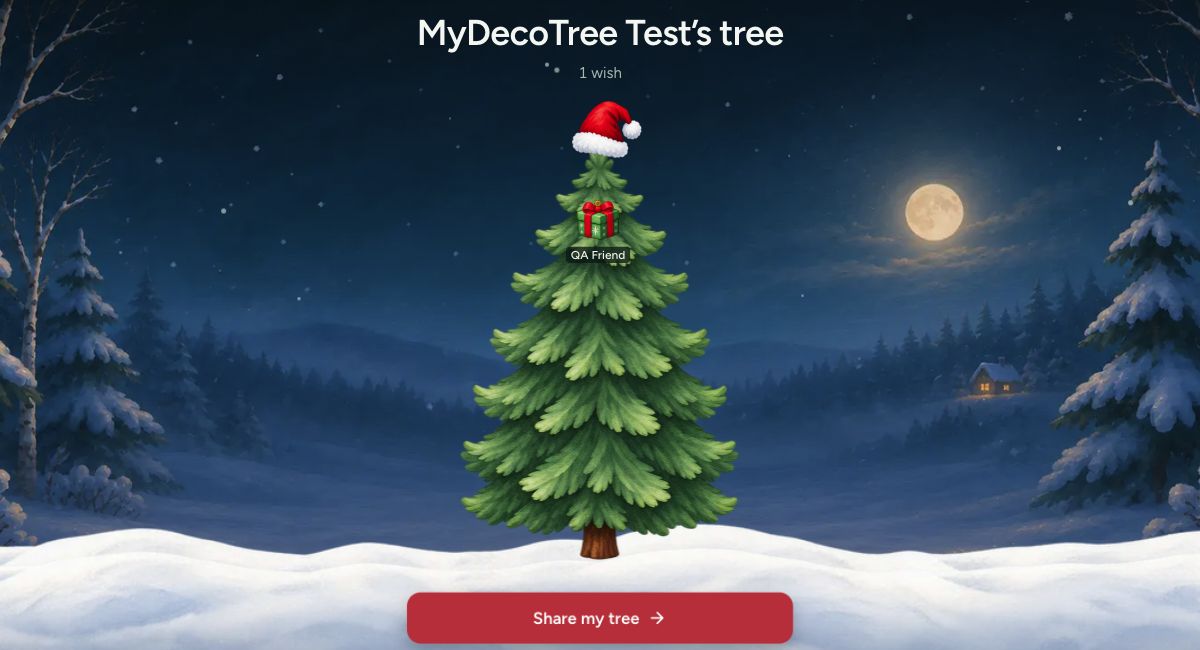
You can use Deco My Tree without downloading an app on MyDecoTree at mydecotree.com. Open the website in your browser, create and save your tree, then share its personal link. Your friends can leave wishes and virtual ornaments in the browser too.
Choose your browser starting point
- Making your own tree? Open the website and sign in to create and save it. No app installation is required; no download does not mean no account.
- Inviting friends? Copy the saved tree’s personal link, rather than sending only the homepage or a screenshot.
- Just leaving a wish? Open your friend’s tree link. You do not need to sign in or download an app; complete verification if prompted.
Step 1: Sign in and name your tree
Open https://mydecotree.com/ and choose Create my tree. Sign in using an available option. Use a name you are happy for visitors to see, since it appears above your tree. Each account can create one tree per year, and its appearance can be changed later.
Step 2: Choose a tree, topper, and background
Move through the tree styles, then choose a topper and a background. The current free selection includes 8 tree styles, 6 toppers, and 3 backgrounds. Select Save my tree when you are ready. You will receive a personal address on mydecotree.com.
Step 3: Copy your tree link
Open Share my tree and choose Copy link. Paste it into a message, a group chat, or a social profile. A short invitation works well: "Leave a little Christmas wish on my tree. I'll open it on December 25 🎄". Add your own tree link after the invitation.
For Instagram or TikTok, use a profile or story link feature if it is available to your account. A screenshot can show the tree, but friends still need the clickable link to reach it.
Screenshots show the English interface and a test tree. The sample text is illustrative; use your own tree link.
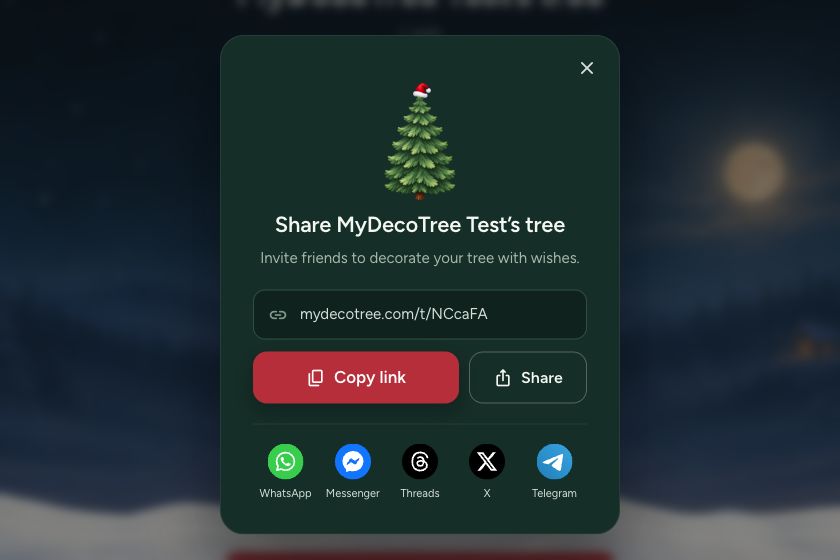
Sharing panel with a test tree link and the Copy link button
Step 4: Friends decorate the tree
Your friend opens the link and chooses Leave a wish. They write a message, add a signature, choose one of the 20 ornaments, and preview the result. Friends can send without signing in; complete security verification if requested and wait for the success confirmation. Hide my name changes the visible sender to Anonymous; Let others read it controls whether visitors may read the wish after opening day.
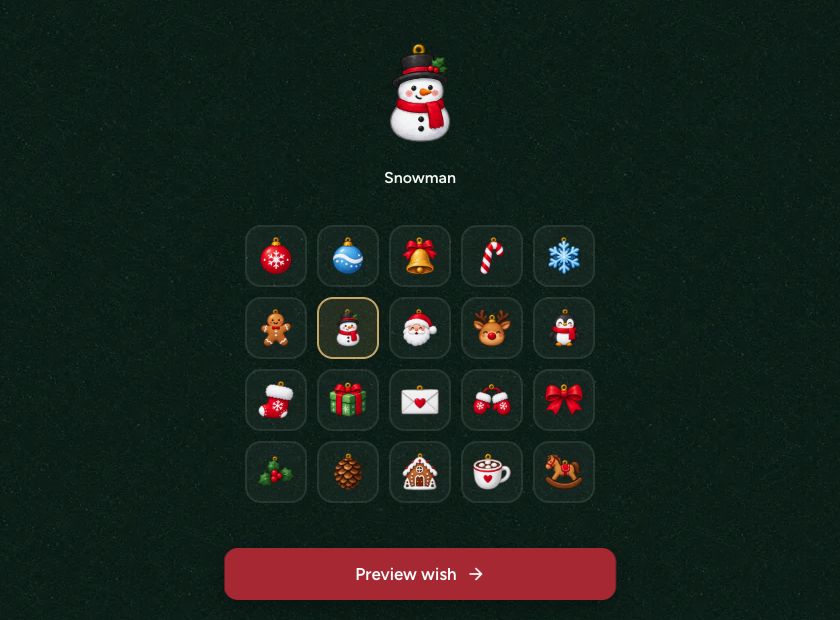
Twenty ornament choices with the snowman selected
Step 5: Return on Christmas Day
The owner sees a sealed-message notice before December 25. Senders can read their own wishes at any time. Once opening day arrives, the owner can read the messages, and visitors can read only those marked public by their writers. Wishes can be added until January 1 unless the owner closes the tree earlier.
Simple sharing checks
Open the copied link in another browser before sending it to a group. Make sure the name and tree are correct. If Share does not open your device's sharing menu, use Copy link instead. Keep your account's sign-in method handy so you can return to the same tree.
Make your tree: https://mydecotree.com/create Count down to opening day: https://mydecotree.com/christmas-countdown Make a festive avatar: https://mydecotree.com/add-santa-hat-to-photo